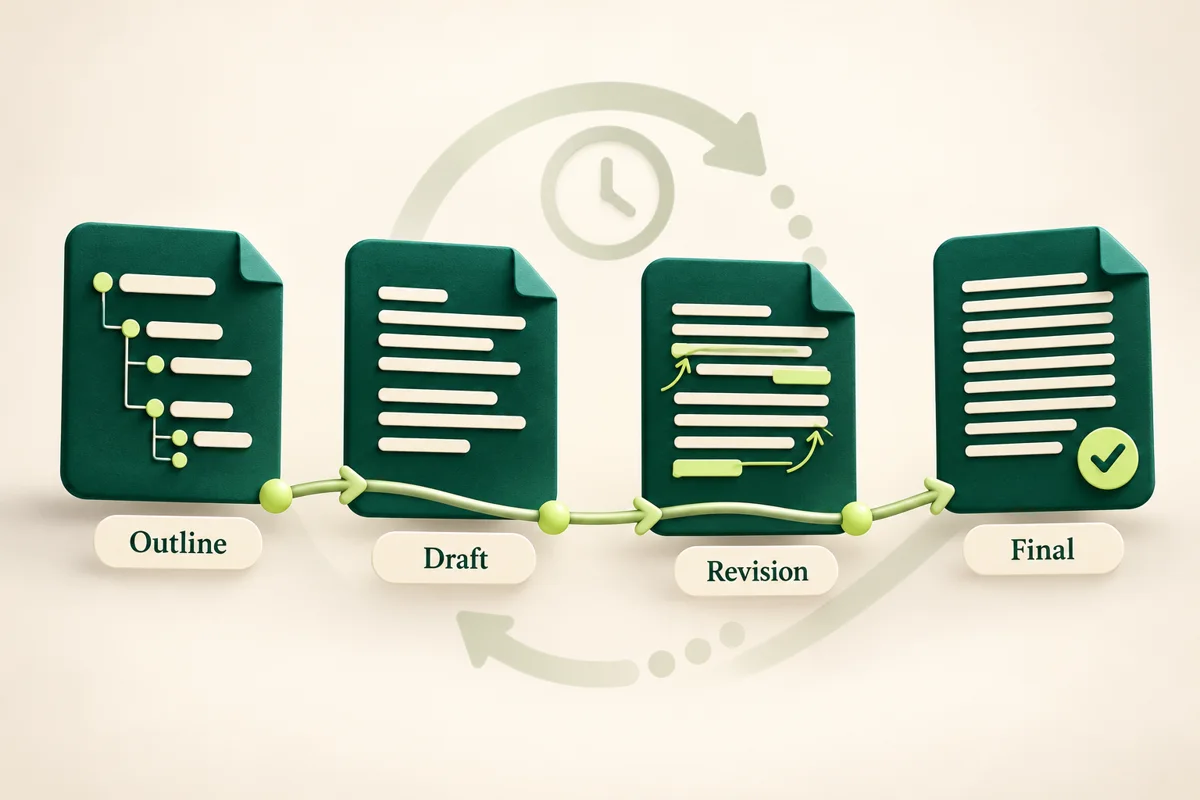
Keep the stages, not just the final essay
Save the document where you actually write, keep the available version history, and label a few meaningful stages: outline, first draft, substantive revision and submitted copy. Add a short note about what changed. That gives you something useful to return to when feedback arrives, a paragraph disappears, or you need to explain a decision.
This is a practical record-keeping method, not a test of who wrote a document. CU Boulder's instructor guidance lists document version history among the materials that may inform a discussion about academic work. It also recommends asking students about their approach and choices; a file record is only part of that context (CU Boulder: documenting observations). Follow your own assignment's instructions for drafts and permitted assistance.
A small record for each meaningful stage
- 1 · SaveKeep the original
Retain the file where drafting actually happens.
- 2 · MarkName a real checkpoint
Use a label that describes work you completed.
- 3 · ExplainNote what changed
Record the reason for an important revision.
- 4 · RetainKeep the submitted copy
Link the final file to its notes and earlier stages.
Find version history in Google Docs
On a computer, open the original Google document. Click the Last edit / Version history control near the top right, then select an earlier entry. Expand grouped entries when needed. Google says browsing earlier versions requires edit permission; ordinary viewing access is not enough (Google Docs: version history).
For an important checkpoint, use the entry's More menu and Name this version. Google explains that naming versions keeps those versions from being merged. You can also make a separate copy of an earlier entry rather than replacing your current work. These instructions describe Google's computer interface; controls and availability can change (Google Docs: named versions and copies).
Our suggested checkpoint names are Outline ready, First complete draft, Evidence checked and Submitted copy. Use names that describe work you actually completed. A label such as “Evidence checked” is your note, not automatic confirmation that the sources are correct.
Find version history in Microsoft Word
First check where the document is saved. Microsoft's Microsoft 365 version-history feature requires a file stored in OneDrive or SharePoint. Do not assume a Word document saved only on your computer has the same history (Microsoft: previous versions of Office files).
In Microsoft 365, open the document, select its title and choose Version history, then open the entry you want to inspect. Microsoft's instructions also show File → Version History for the web app. If your interface differs, use the matching platform tab in its help page. The number of retained versions can depend on the account and library configuration (Microsoft: version-history instructions).
For a local-only workflow, make deliberate dated copies at major stages and keep them with your notes. That is a manual backup habit, not the same feature as cloud version history. Before relying on either method, open an older copy and check that it contains what you expect.
Build a small revision log
Use the following original example as a model for your own notes. The entries illustrate editorial decisions; they are not a real student's records, verified timestamps or a required university form.
Scroll the table to compare all columns.
| Stage | What changed | Why it changed | Record to keep |
|---|---|---|---|
| Outline | Divided the argument into three claims | Each section needed a distinct purpose | Outline and assignment brief |
| First draft | Added an example to the second claim | The explanation was too abstract | Draft and source notes |
| Evidence review | Narrowed a claim to the population studied | The source did not support a broader statement | Revised paragraph and source location |
| Final review | Fixed a quotation and checked references | Wording and attribution needed to match | Final file and citation checklist |
Keep the log short enough that you will use it. Record actual changes when they happen. If you write a later recollection, label it as a recollection rather than presenting it as a note made during drafting. Do not invent missing stages or backdate records.
Keep these records together
Choose a folder or approved school storage location for the original drafting document, your assignment brief, source notes, feedback and submitted copy. Give each item a clear name. Use this checklist to avoid collecting a pile of files with no explanation.
Scroll the table to compare all columns.
| Record | Useful context | Limit |
|---|---|---|
| Drafting document and available history | How the saved text developed | Not a complete explanation of how every sentence was produced |
| Outline and reading notes | How you organised ideas and connected sources | Notes may be partial or written after a decision |
| Feedback and revision log | Why you made a particular change | A summary is not a transcript of all activity |
| Assistance record | Tools or people involved and the tasks they supported | A record does not make prohibited assistance permissible |
| Submitted file and receipt | Which copy you handed in | The final file alone does not describe the drafting process |
Keep personal or sensitive material separate. If someone requests evidence, ask what is relevant and how to share it securely. Avoid making a document public just to show one reviewer a few drafting stages. Check with the instructor or school support team before changing access to a school-managed document.
What version history cannot establish on its own
Treat a saved version as a record to interpret, not an authorship certificate. It does not explain every source, conversation or tool involved in making the text. A long history is not a guarantee of permitted work, and a short history is not enough by itself to decide what happened.
For example, if you wrote a paragraph in another file and moved it into the main draft, preserve the earlier file and explain the move honestly. If you have no older copies, say so. Do not manufacture an editing trail, retype work to create a misleading record, or change a draft just to obtain a different detector score.
For score interpretation, use our separate guide to what an AI detection score can tell you. This guide's task is preserving the writing process, not deciding whether an AI detector is right.
Before you revise with a writing tool
Keep a copy of the starting text and make a note of the kind of assistance you used. Check whether the assignment permits that assistance before using it. Afterwards, compare the revision with your original argument, verify citations, and describe any AI use as required.
If your course allows it and you choose HumanWords for a check or revision, use the homepage as an optional next step. Keep the original drafting records in your own approved storage; a detector result or rewritten output is not a substitute for them. Our AI-use disclosure examples can help you describe assistance accurately.
A final two-minute check
- Can you open the original drafting file and an earlier saved stage?
- Are your stage labels honest and understandable?
- Have you kept source notes and the reasons for important revisions?
- Is the submitted copy clearly identified?
- Have you recorded assistance and followed the assignment's rules?
- Can you share the relevant records without exposing unrelated private material?
You do not need a perfect archive to start keeping better records. Save what exists now, identify gaps honestly, and use a simple repeatable method for the next drafting session.
Sources and scope
- Google Docs Editors Help: Find what's changed in a file. Official computer-interface instructions for earlier versions, edit permissions, named versions and copies; checked 27 October 2026.
- Microsoft Support: View previous versions of Office files. Official storage requirements and platform-specific version-history instructions; checked 27 October 2026.
- CU Boulder: Addressing Academic Misconduct. Institution-specific instructor guidance includes version history and discussion of the student's process; not a universal policy or promise of an outcome. Checked 27 October 2026.
The checkpoint names, revision log, folder method and checklist are original editorial suggestions. We checked the linked documentation; we did not run a hands-on Google Docs or Word account test, evaluate a student's case, or test whether records prove authorship. This article makes no detector-performance claim.